
Studio
Assemble and render your video directly in the app

Marcelo Franco
Last Update 5 bulan yang lalu
Requirements
ANTHROPIC_API_KEY — used by the LLM chat to generate and update compositions
Layout
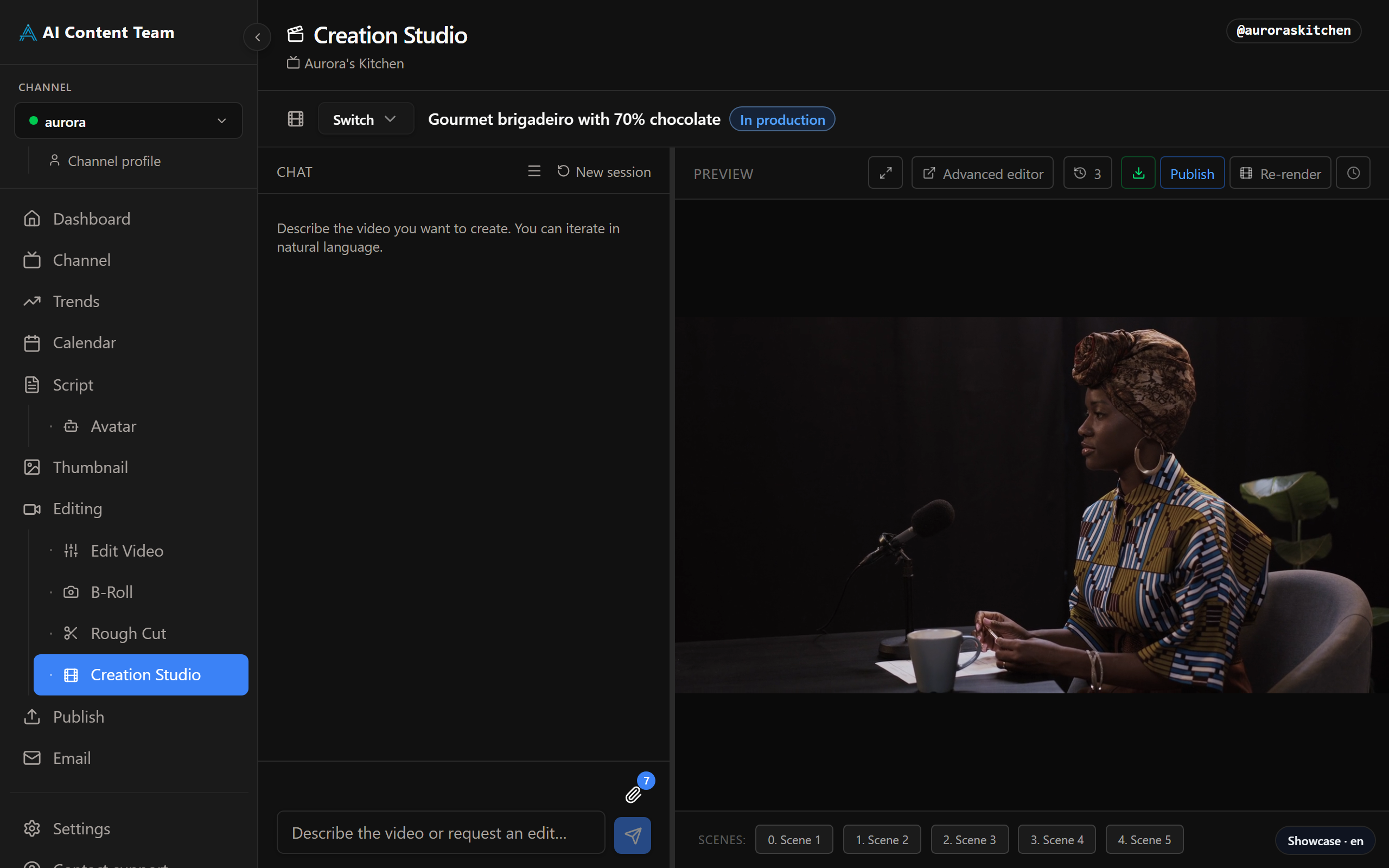
Left panel — chat with the LLM. Ask it to add a scene, change a transition, swap a B-roll clip, or tweak captions. The panel is resizable; collapse it to give the preview more room.
Center — the HyperFrames player rendering the live composition. A toolbar above gives quick access to History, Render and Advanced Editor.
Scenes bar — markers below the player let you jump between scenes by timecode.
How It Works
Pick the video in the selector at the top — the Studio loads the latest composition for it (or starts a blank one). Describe changes in the chat: the LLM rewrites the composition and the preview updates in place. Use the Scenes bar to navigate between sections, the History button to revert any change, and Render when you are satisfied with the result.
Advanced Editor
Click "Advanced Editor" to open the full HyperFrames Studio in a separate window — Inspector, Capture and Renders panels included. It opens against a local sidecar serving the composition you're working on, so any edit there syncs back to the in-app preview.